
One of the most frustrating experiences in modern life is when your internet suddenly stops working without warning. In a world where almost everything depends on connectivity, even a short outage can feel overwhelming. Work deadlines get delayed, communication with friends and family becomes difficult, and entertainment options disappear instantly. For gamers, streamers, and remote workers, an internet outage can bring daily life to a complete halt.
The good news is that internet outages are often temporary and sometimes easy to fix. While some problems originate from your internet service provider, others occur within your home network. Understanding the right steps to take can save you time, stress, and unnecessary calls to customer support. If you are not particularly tech-savvy, you can always reach out to customer service to diagnose the issue. For example, I use a Spectrum internet connection, and whenever an outage happens once in a blue moon I simply call the Spectrum Customer Service number, and the issue usually gets resolved quickly.
- Common Reasons Why Internet Outages Happen
- Try Restarting Your Equipment
- Check Your Connections and Cables
- Check Your Devices
- Test Your Internet Speed and Signal Strength
- Check if There Are Any Local Outages
- Contact Your Internet Service Provider
- What Can You Do During the Outage?
- How to Prevent Future Internet Outages
- Conclusion
- Frequently Asked Questions
Apart from contacting customer support, there are several simple troubleshooting steps you can take on your own to restore your internet connection.
Common Reasons Why Internet Outages Happen
Before jumping into solutions, it helps to understand why internet outages occur in the first place. Internet problems can stem from various sources, including damaged cables, router malfunctions, outdated firmware, or incorrect device settings. Sometimes the issue exists outside your home, such as ISP maintenance, regional outages, or weather-related disruptions.
Power outages, construction work near fiber lines, and network congestion during peak hours can also interrupt service. Identifying whether the issue is internal or external allows you to act accordingly and avoid wasting time on unnecessary fixes.
Try Restarting Your Equipment
The first and most effective step you should take during an internet outage is restarting your equipment. This process, commonly known as a power cycle, refreshes your router and modem by clearing temporary software glitches.
To do this correctly, turn off your router and modem, unplug them from the power source, and wait at least one full minute. After that, plug the modem back in first, wait until all indicator lights stabilize, and then power on the router. This method forces the devices to re-establish a fresh connection with your ISP and often resolves connectivity issues within minutes.
If your internet still does not work after restarting, do not panic. You can move on to the next troubleshooting steps.
Check Your Connections and Cables
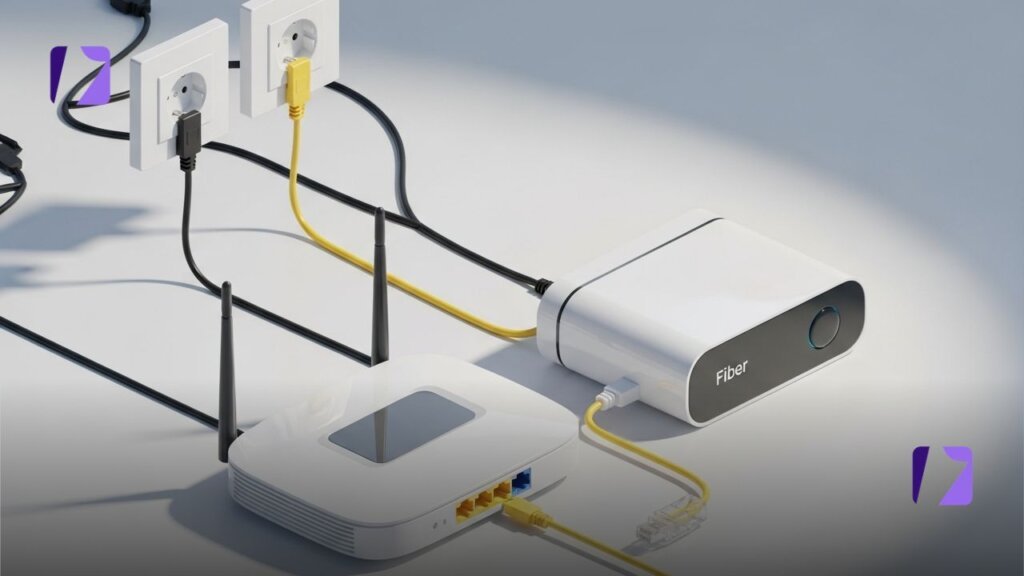
Loose or damaged cables are a surprisingly common cause of internet problems. You should carefully inspect all cables connected to your router and modem, including Ethernet cables, coaxial cables, and power cords. Make sure each cable is firmly plugged into the correct port.
Ethernet cables connecting your router to devices like desktop computers or gaming consoles should also be checked. A slightly loose connection can prevent internet access entirely. Additionally, inspect the power supply to your router. A faulty or unstable power cable can cause the router to shut down intermittently, leading to frequent disconnections.
If you notice frayed wires, bent connectors, or flickering power lights, replacing the cable may instantly fix the problem.
Check Your Devices
Once you confirm that your router and cables are working properly, shift your attention to your devices. Ensure that all devices are connected to the correct Wi-Fi network. Sometimes, devices automatically connect to neighboring networks or saved hotspots with weak signals.
If your Wi-Fi name (SSID) or password was recently changed, your devices may fail to reconnect. In such cases, open your device’s Wi-Fi settings, forget the existing network, and reconnect by entering the password again. This simple step often resolves authentication issues.
You should also check whether the problem affects only one device or multiple devices. If only one device cannot connect, the issue likely lies with that specific device rather than your internet connection.
Test Your Internet Speed and Signal Strength
Even if your internet appears to be working, slow speeds or weak signals can make it seem unusable. Stand closer to your router and check whether the connection improves. Thick walls, furniture, and electronic interference can weaken Wi-Fi signals.
You can also test your internet speed using online speed-testing tools through your mobile data connection. If speeds are significantly lower than expected, your ISP may be experiencing network congestion or technical issues.
Check if There Are Any Local Outages
If nothing inside your home seems to be wrong, it is time to expand your investigation. Ask your neighbors whether they are experiencing similar internet issues. If multiple households face the same problem, the issue is likely with the service provider.
You can also use your mobile data to visit outage tracking websites such as Downdetector, where users report real-time service disruptions. Additionally, many ISPs maintain a service status page that provides updates on outages and estimated restoration times.
If the outage originates from your ISP’s end, there is little you can do besides waiting for them to resolve the issue.
Contact Your Internet Service Provider
When all troubleshooting steps fail, contacting your ISP’s customer service becomes necessary. Customer support representatives can run diagnostic tests, confirm outages, and guide you through advanced troubleshooting steps.
When calling support, be prepared to share details such as router light indicators, error messages, and the type of connection you use. Clear communication helps customer service identify the issue faster and provide an effective solution.
What Can You Do During the Outage?
Even when your home internet is down, you still have options to stay productive and entertained. One of the most practical solutions is using your mobile hotspot through your cellular network. This allows you to connect essential devices temporarily, although you should monitor data usage carefully.
Offline entertainment also comes in handy during outages. Streaming platforms such as Netflix and Max allow users to download movies and TV shows in advance, making them accessible without an internet connection. Keeping a library of offline content ensures you are never left without entertainment.
You can also use this time to play offline games on your PC or console, organize files, read books, or work on tasks that do not require an internet connection.
How to Prevent Future Internet Outages
While you cannot prevent all internet outages, you can reduce their frequency and impact. Investing in a high-quality router, keeping firmware updated, and using surge protectors can improve network stability. Placing your router in a central location improves signal coverage throughout your home.
For those who rely heavily on internet access, having a backup connection such as mobile data or a secondary ISP can be a lifesaver during outages.
Conclusion
Internet outages can disrupt daily routines, but they do not have to cause unnecessary stress. By following a systematic troubleshooting approach restarting equipment, checking cables, testing devices, and confirming local outages you can often resolve the issue quickly. If the problem lies with your ISP, contacting customer support remains the best solution.
Understanding whether the issue is on your end or the provider’s end allows you to respond calmly and effectively. With a little preparation and patience, internet outages become manageable rather than overwhelming.
Frequently Asked Questions
What is the first thing I should do when my Internet Outage?
You should restart your modem and router using a proper power cycle, as this resolves many temporary connectivity issues.
How long should I wait before calling my ISP?
If basic troubleshooting does not work within 10–15 minutes and no local outage is reported, you should contact your ISP.
Can weather cause internet outage?
Yes, storms, heavy rain, and strong winds can damage cables and infrastructure, leading to temporary service disruptions.
Is it safe to restart my router frequently?
Yes, restarting your router is safe and can improve performance by clearing minor software glitches.
What is the best backup for internet outages?
A mobile hotspot or secondary internet connection works well as a temporary backup during outages.
VISIT MORE: APEX MAGAZINE